
What Is A Nameserver? Nameservers Vs. DNS, Explained


A nameserver is the part of the internet’s address book that answers for your domain: when someone types your address, the nameserver points their browser to your website. The moment this matters most? When you migrate your site to a new host and wonder what the move means for your domain registration — and whether visitors will still find you.
This is why it’s important to understand what nameservers and the Domain Name System (DNS) are and how they work. This knowledge will help you manage your migration efficiently and keep the traffic flowing.
In this post, we’ll look closer at nameservers and DNS records. We’ll also show you how you can access these essential components of your site. Let’s get started!
Nameserver
A nameserver is the Domain Name System (DNS) server component that translates a website’s domain name into a numerical IP address. This term can refer to any server with DNS software, as well as a hosting provider’s server that manages customer domain names.
Read More
Nameservers Vs. DNS Records: What They Are And How They Work
A nameserver is the server that answers DNS lookups for your domain — it connects your domain name to the Internet Protocol (IP) address of the server hosting your website. DNS is the overall system, nameservers are the machines that run it, and DNS records are the individual entries they serve.
Thanks to nameservers, browsers like Google Chrome and Mozilla Firefox can direct users to the right page when they type in a site address.
For example, if you type example.com into Google, the nameserver tells the browser where that domain is located (i.e., the address of your web host). Without this information, the browser couldn’t display the site.
Nameservers are one piece of the larger Domain Name System (DNS).
DNS
The Domain Name System (DNS) protocol keeps records of which domain names correspond to specific IP addresses. DNS enables you to browse the web by typing in regular URLs instead of IP addresses.
Read More
This system works in partnership with the Transmission Control Protocol (TCP) and the Internet Protocol (IP), which define how computers communicate via the Internet and private networks.
DNS plays an important role in converting simple domain names (e.g., example.com) into an IP address (e.g., 12.34.56.78), which computers then use to identify one another on the network.
Essentially, think of DNS as a phone directory. It contains records of web devices, such as computers and servers, and their associated IP addresses.
Every domain has its own DNS records, including an NS record naming its nameservers. These are created when you register your domain name, and the records your nameserver serves point your domain to your host’s IP address.
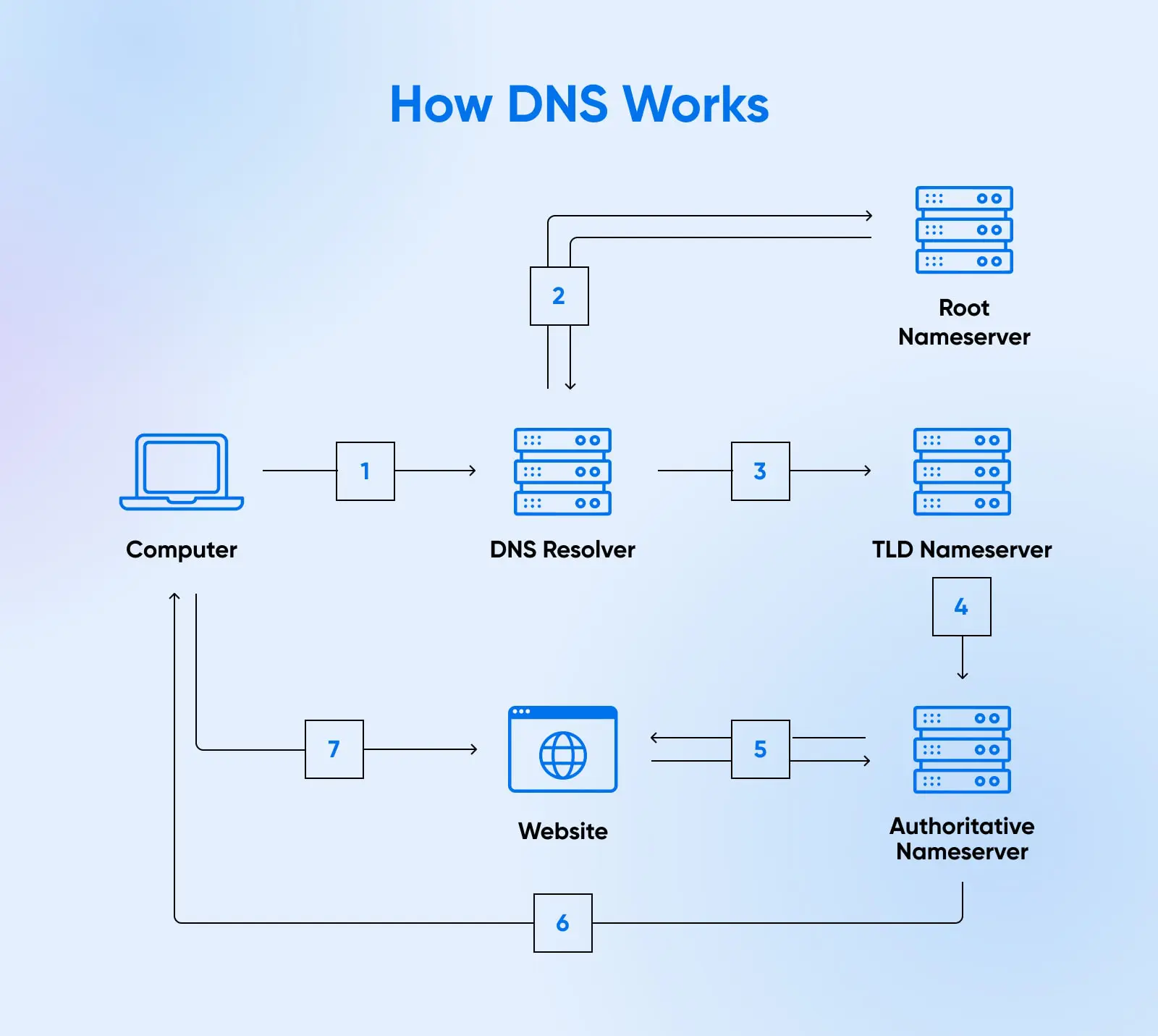
How The Browser Finds Your Website
Everything that’s connected to the internet has an IP address, including websites and servers. There are billions of IPs in use all over the world, and they’re all unique. Your site will have its own IP address, which your host provides.
Your domain name must, however, be able to connect to the IP address of your site. For example, when you enter a site’s URL into an address bar, your browser will try to access the corresponding page. To do this, it’ll go through some steps that you won’t see.
First, your browser asks a DNS resolver for directions, known as a DNS query. (The resolver is usually run by your internet provider, though public ones like 1.1.1.1 exist too.) The resolver works down the chain: the DNS root servers point it to the servers for the domain’s ending, like .com (the TLD nameservers), and those point it to the domain’s own authoritative nameservers (e.g., ns1.dreamhost.com) — the ones set at your registrar. The nameserver answers with your site’s IP address, and the browser connects.
This whole process takes a fraction of a second.
As users, we don’t fully appreciate the additional steps. However, if you decide to change hosting providers, you’ll need to update your domain name records to point to the new host. This is a vital step. Otherwise, users won’t be able to find or access your site.
How To Use Nameservers And DNS Records
Accessing the DNS records, including your nameservers, can make the process much easier when transferring your domain. Let’s take a look at the different ways you can locate and manage these important records.
Locating And Managing Your Nameservers
Your domain’s nameservers can be found in your web hosting account. These might also be available on the hosting company’s documentation page.
The nameservers for domains managed by DreamHost are:
- ns1.dreamhost.com
- ns2.dreamhost.com
- ns3.dreamhost.com
If you’re a DreamHost client, you can log in to your hosting account to view your nameservers.
Note that if your domain is registered with a different company, you won’t be able to update your nameservers from your DreamHost account. To manage your nameservers, you’ll need to log in to your account with the company that manages your domain.
If your domain is registered with DreamHost, you’ll be able to edit your nameservers. For instance, if you want to replace your current nameservers, you can simply erase them from the box and type in your new ones.
You can also manage your domain from the Registrations page in your account. For more information about this, you can read our complete instructions for editing your nameservers on DreamHost.
Alternatively, you can find out what a website’s nameservers are by performing a WHOIS lookup. These lookups now run on RDAP, WHOIS’s modern replacement, but the idea is the same. Nameservers are public records, so it’s possible to find this information by using a third-party tool.
Several sites offer this service, including ICANN’s lookup tool.
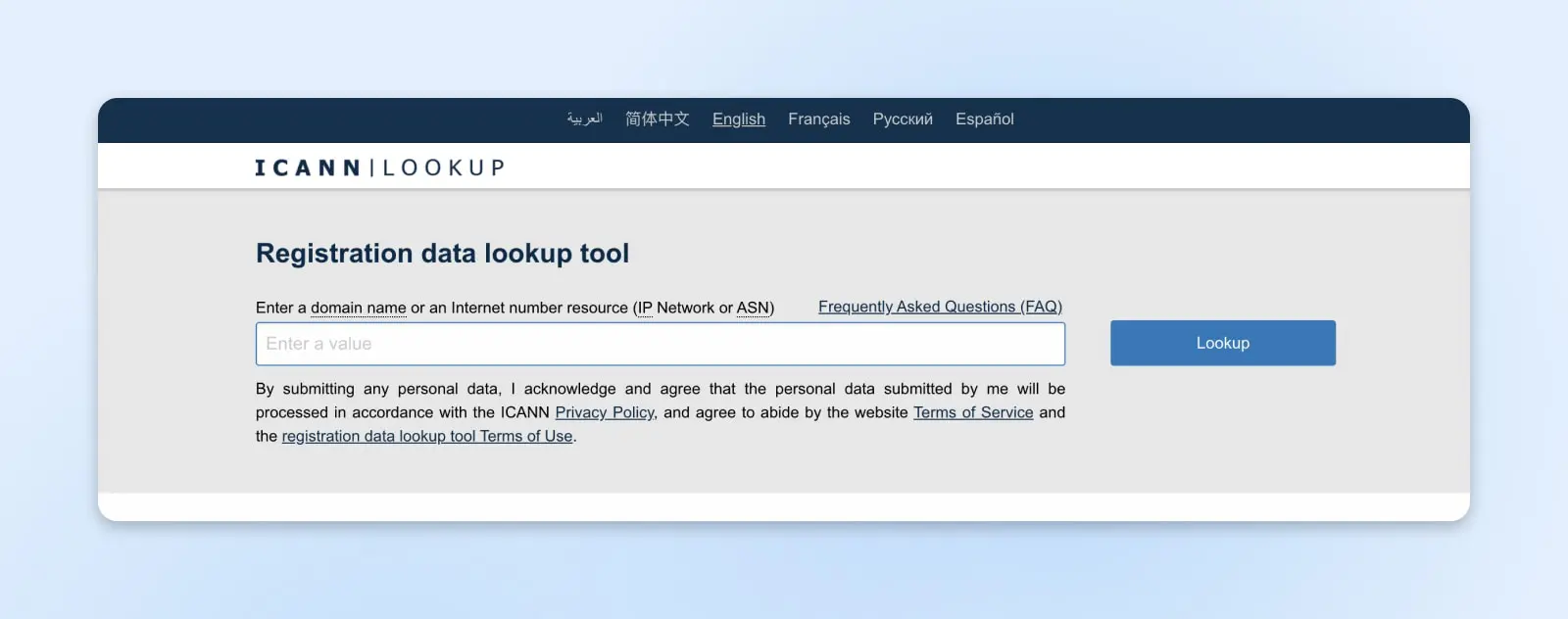
You can type the domain name into the search bar, and a list of records will appear. For example, here are the nameservers for google.com:
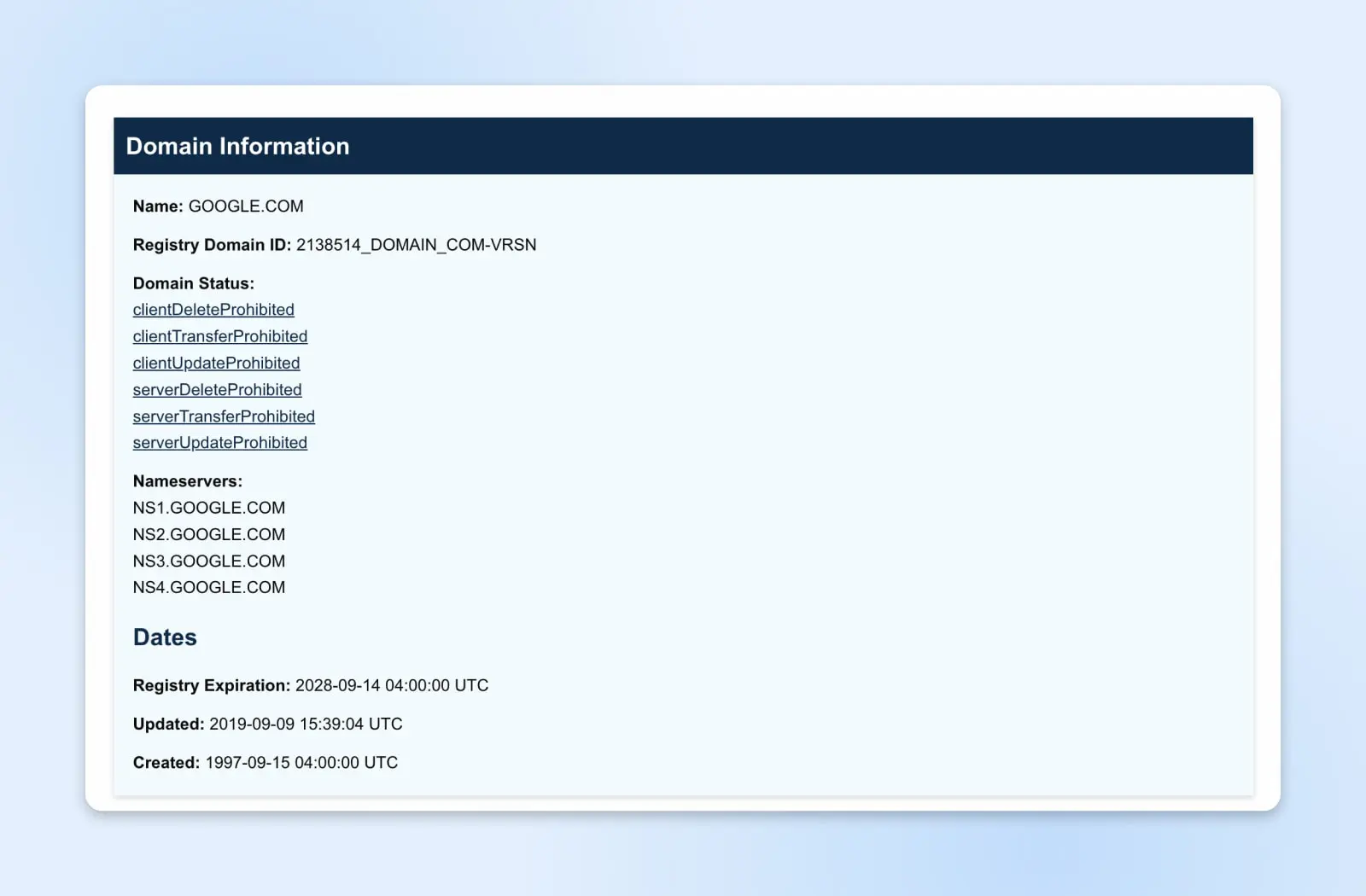
One thing you usually won’t see anymore: the owner’s personal details. Since GDPR took effect in 2018, most registrars redact contact data by default, so lookups typically show “REDACTED FOR PRIVACY” — and many registrars, DreamHost included, add free domain privacy on top. Nameservers, though, are always public.
Locating And Managing Your DNS Records
Your DNS records are just as easy to locate and manage. You can log in to your hosting account to view your records and change them. If your domain is managed by a third party, such as a domain name registrar, you’ll need to log in to your account with that company.
If you have a DreamHost account, your DNS records can be found on the same page as your nameservers.
You can add a new DNS record to your domain by following these instructions. You’ll notice there are different types of records you can create. Let’s take a closer look at the most common ones.
A Record
The address record is the most basic type of DNS record. It points a domain (or subdomain) to an IP address.
Subdomain
A subdomain is an additional element added to the start of a website’s domain name. In blog.example.com, “blog.” is the subdomain. Subdomains are usually added to domains to create new pages that have unique content and/or functionality that extend the reach and purpose of a website.
Read More
CNAME Record
The canonical name record points a domain to another domain instead of an IP address. This is used when a site has subdomains, such as shop.myblog.com or donations.example.myblog.com.
These are subdomains of myblog.com. Let’s say that each of these subdomains has a CNAME record containing the value myblog.com. Since the DNS is looking for an IP address when the CNAME record is accessed, a further lookup is carried out at myblog.com (as this is the value contained in the CNAME record).
CNAME Record
CNAME is an abbreviation of “Canonical Name”. This term is typical when referring to a “CNAME record” in a Domain Name System (DNS). It maps an alias domain to its true domain name.
Read More
It’ll then return the IP address stored in myblog.com’s “A” record. This means that these subdomains are aliases of the main domain, and the canonical name (or “true name”) of these subdomains is actually myblog.com.
MX Record
A mail exchange record is used to direct emails to an address registered on your domain (e.g., hello@myblog.com) per the Simple Mail Transfer Protocol (SMTP) — the standard protocol for email.
Ensuring that your MX records point to the right mail server is important. Otherwise, you won’t receive emails through your account. Also, before switching hosts, we recommend backing up your emails.
NS Record
As mentioned previously, this is the nameserver record: it lists which nameservers are authoritative for your domain — that is, the ones holding your domain’s live records, the last stop in the lookup chain described earlier. When you move your DNS to a new provider, you update the nameservers at your registrar, and the NS records reflect that change.
TXT (Text) Record
This one allows you to insert text into your DNS records. Originally, the TXT record was designed for human notes, such as site descriptions or development details. However, it’s possible to include machine-readable data.
This record helps protect your domain’s email against spoofing and spam — the SPF, DKIM, and DMARC authentication records all live in TXT. It also enables you to verify your domain (e.g., by adding a Google Site Verification record). It’s quite common to have multiple TXT records for a single website.
Monitoring Your DNS Records
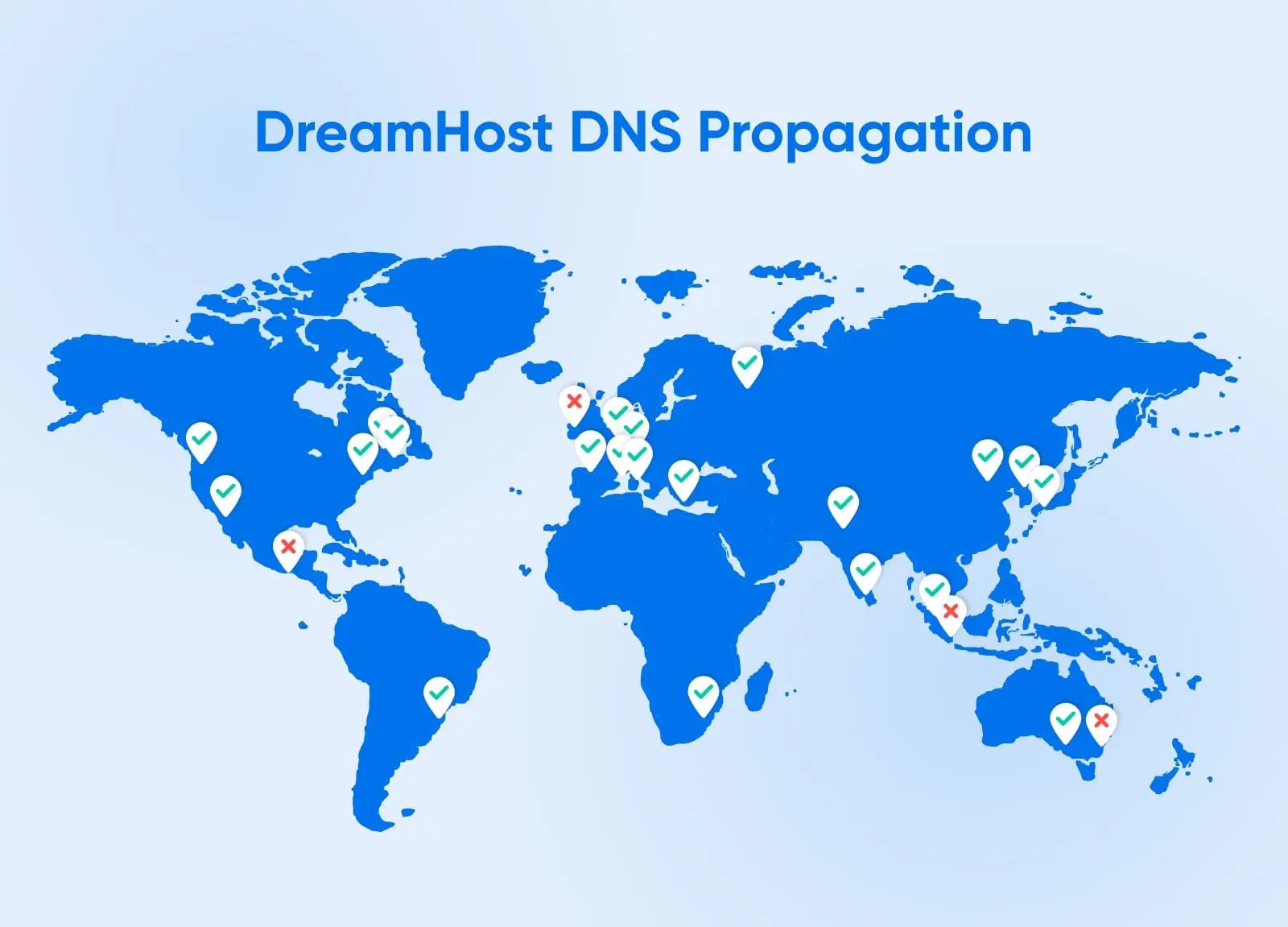
When updating your nameservers and other domain records, you’ll need to take DNS propagation into account. This is the time it takes for your DNS records to update across the internet. For example, when you modify your nameserver to point to your new hosting company, this change can take up to 72 hours to come into effect.
At DreamHost, we offer a DNS propagation checker in your panel to help you monitor your records. You can also use the propagation checker from ViewDNS.info or whatsmydns.net, which even has a map that shows your domain’s current IP address and DNS record information at multiple nameservers all over the world.
DNS And Nameserver FAQs
By now, you should have a pretty good understanding of how DNS and nameservers work. But there are a few more questions you should know the answers to. Let’s clear those up now:
What Is The Difference Between A DNS Zone And A Nameserver?
In simple terms, a DNS zone holds all the DNS records managed by a specific person or organization. It usually applies to one specific domain and related subdomains.
For example: if you own example.com, your DNS zone might include records for:
- www.example.com
- mail.example.com
- blog.example.com
In contrast, a nameserver is a server computer that hosts DNS zones. It stores all DNS records saved for your domain, and looks up the IP address when prompted.
What Is The Difference Between DNS Resolver And Nameserver?
A DNS resolver is a piece of software that initiates DNS queries whenever you try to access a website or internet resource by domain name. The resolver contacts nameservers and asks “What is the IP address for this domain name?”
The nameserver is the dedicated server computer that has the DNS records stored and which looks up the right IP address to send back to the resolver.
What Is TTL In DNS?
TTL stands for Time to Live. It’s a setting that tells resolvers and other computers how long to cache (temporarily store) a specific DNS record before requesting it again from the nameserver.
This helps reduce the number of queries whenever a domain is looked up, improving your site’s performance.
TTL is set in seconds. DreamHost sets it automatically — 5 minutes by default, per the DreamHost Knowledge Base — so record changes pick up quickly. DNS hosts that let you choose typically offer values from about 30 seconds up to 86,400 seconds (one day). Lower values pick up changes faster, while higher values mean fewer repeat lookups.
How Long Do Nameserver Changes Take To Work?
Usually a few hours, and up to 72 hours for the change to reach every corner of the internet — that lag is called DNS propagation. You can watch it happen with a checker like whatsmydns.net.
Do I Change My Nameservers Or My DNS Records?
Change nameservers when you want a different company to manage all of your DNS (usually when switching hosts). Change individual DNS records when you just need to point one thing somewhere new: your site to a server (A record) or your email to a provider (MX record).
Nameservers Vs. DNS In A Nutshell
When you migrate your site to a new host, knowing how nameservers and DNS Records work can make the process a lot smoother. You need to make sure your domain points to the correct nameserver. Otherwise, site visitors will be unable to access your pages.
At DreamHost, we make your life easier by managing the entire transition process, including your domain transfers.
Plus, you can manage your own domains and DNS from your hosting account with us, and your domain also gets free privacy protection.

Private Domain Registration For All
Don’t let someone else register your domain first. Search DreamHost’s 400+ TLDs to find the perfect fit for your website.
Master Your Domain
Did you enjoy this article?
