
How to Install a LAMP Stack on a VPS (2026 Guide)

Your managed-hosting renewal landed in your inbox last week.
Yikes.
The number is bigger than you remember. Your $9-a-month plan is somehow $34 a month now. The marketing email called it a “rate adjustment.”
The price isn’t even the annoying part. The plan you signed up for three years ago is now a different plan, and nobody asked you. You can’t ssh into the box. You can’t change the PHP version without filing a ticket. The host doesn’t think of itself as renting you a server. It thinks of itself as renting you permission to run a website.
LAMP is still the default PHP runtime on the public web. Over four out of every 10 websites run a LAMP application called WordPress. What changed over the last decade is that managed hosts wrapped LAMP in a control panel and started charging more for less of it. A VPS takes the control panel back off.
Installing LAMP yourself takes about five steps, plus one key decision (PHP-FPM, not mod_php) that most older tutorials get wrong. Here’s exactly how to do it — and how to know whether self-managing is the right call for you in the first place.
What Is a LAMP Stack?
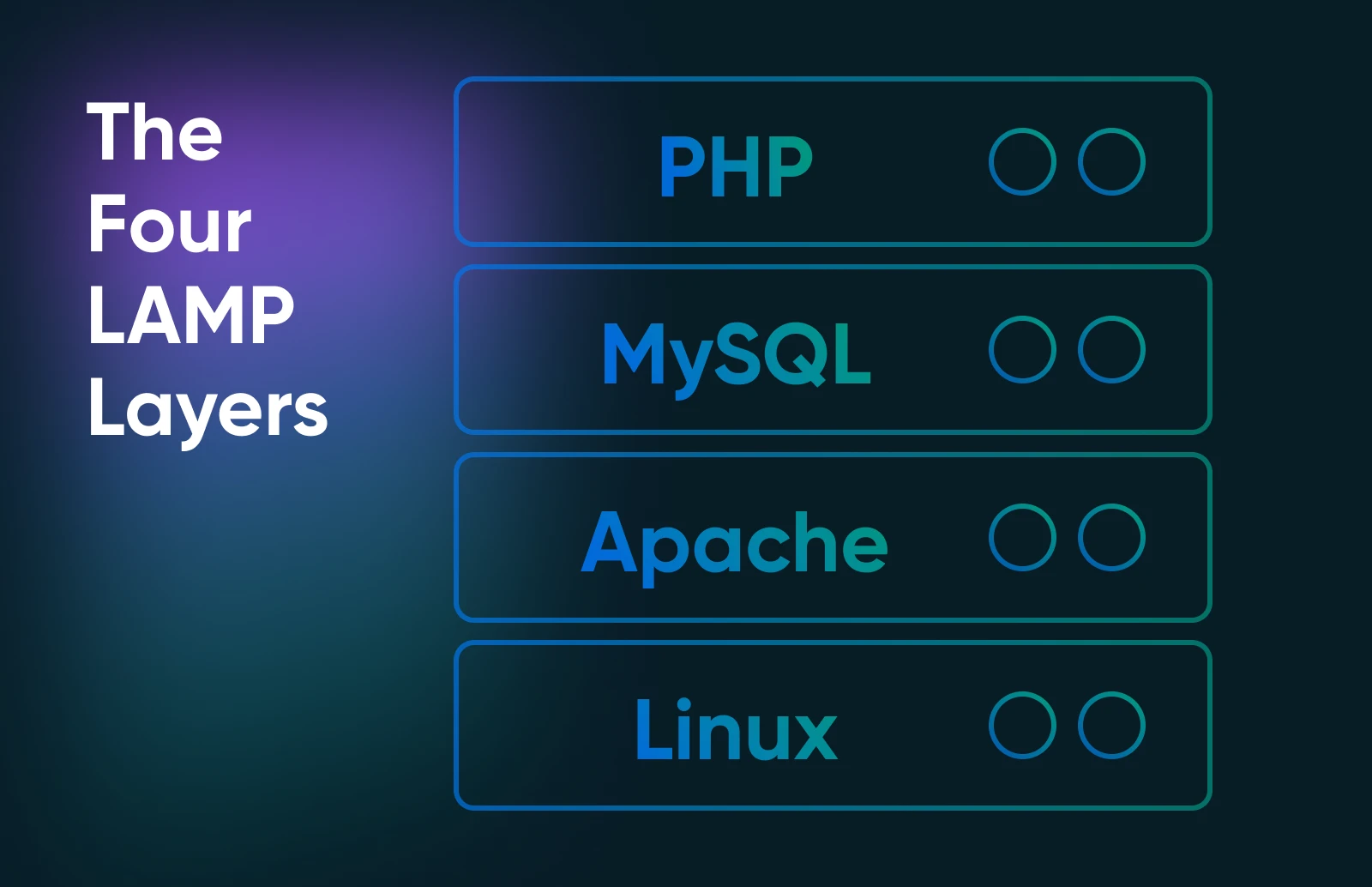
A LAMP stack is the four-piece runtime that serves most PHP applications on the internet. Linux for the OS, Apache for the web server, MySQL (or MariaDB) for the database, and PHP for the application code. It’s been the default open-source web stack since the early 2000s. Versions changed; the shape hasn’t.
The “L” is flexible: Ubuntu, AlmaLinux, Debian, and Rocky all count. Pick one and move on. For most people in 2026, the right answer for a new deployment is Ubuntu 24.04 LTS. It is the current default for new installs, and plenty of production servers still run 22.04 LTS, which stays supported into 2027.
As of June 2026, according to W3Techs, PHP runs 70.8% of all websites with a known server-side language. (Clearly, PHP isn’t dead.) WordPress alone powers 41.5% of all websites, and it’s a LAMP application by design. In other words, if you run a WordPress site, you’re already running LAMP. You just may not own the server.
Running LAMP on a VPS, versus shared or managed hosting, gets you three things:
- Full root access: You decide which PHP modules are installed, which Apache config to ship, and which port the database listens on.
- No tenant noise: A VPS gets a guaranteed slice of CPU and RAM. Your traffic spike doesn’t compete with whoever else is on the host.
- Predictable pricing: A flat monthly cost that doesn’t double when an “unlimited” shared plan decides your CPU usage is too high.
The cost is that everything between the kernel and your application is now your job.
What VPS Do You Actually Need for a LAMP Stack?
A 4 GB VPS with 2 vCPU and NVMe SSD storage runs a typical LAMP application comfortably — a single WordPress site, small Laravel app, or a couple of low-traffic PHP sites. Scale up only when the workload tells you to.
A few sizing notes worth knowing:
- NVMe matters more than people expect. MySQL is writing constantly — the binlog, the InnoDB redo log, the table files. Old SATA SSD technically works, but you’ll feel the slog the first time you run a database import.
- RAM is usually the constraint. PHP-FPM holds worker processes in memory; MySQL holds an InnoDB buffer pool. Run out of RAM, and the box starts swapping. And a swapping LAMP server feels broken even when nothing technically is.
- Don’t over-provision on day one. Most operators size up for an imagined future load that never arrives. Start at the workload-appropriate tier and scale when you hit a wall.
For most LAMP workloads, VPS Stack 4 is the right baseline: 4 GB RAM, NVMe storage, full root access, and unmetered bandwidth. Scale up when the workload tells you to.
How Do You Install a LAMP Stack on a VPS?
A LAMP install on a fresh Ubuntu 24.04 LTS VPS takes about 30 minutes. The shape is the same on AlmaLinux, only the package manager differs (dnf instead of apt). Debian uses apt, just like Ubuntu.
Pick your OS first. Ubuntu 24.04 LTS is the default for most new deployments. Canonical ships LTS security updates for five years, and most tutorials target it. AlmaLinux is the right call for a Red Hat-family system without the RHEL price tag.
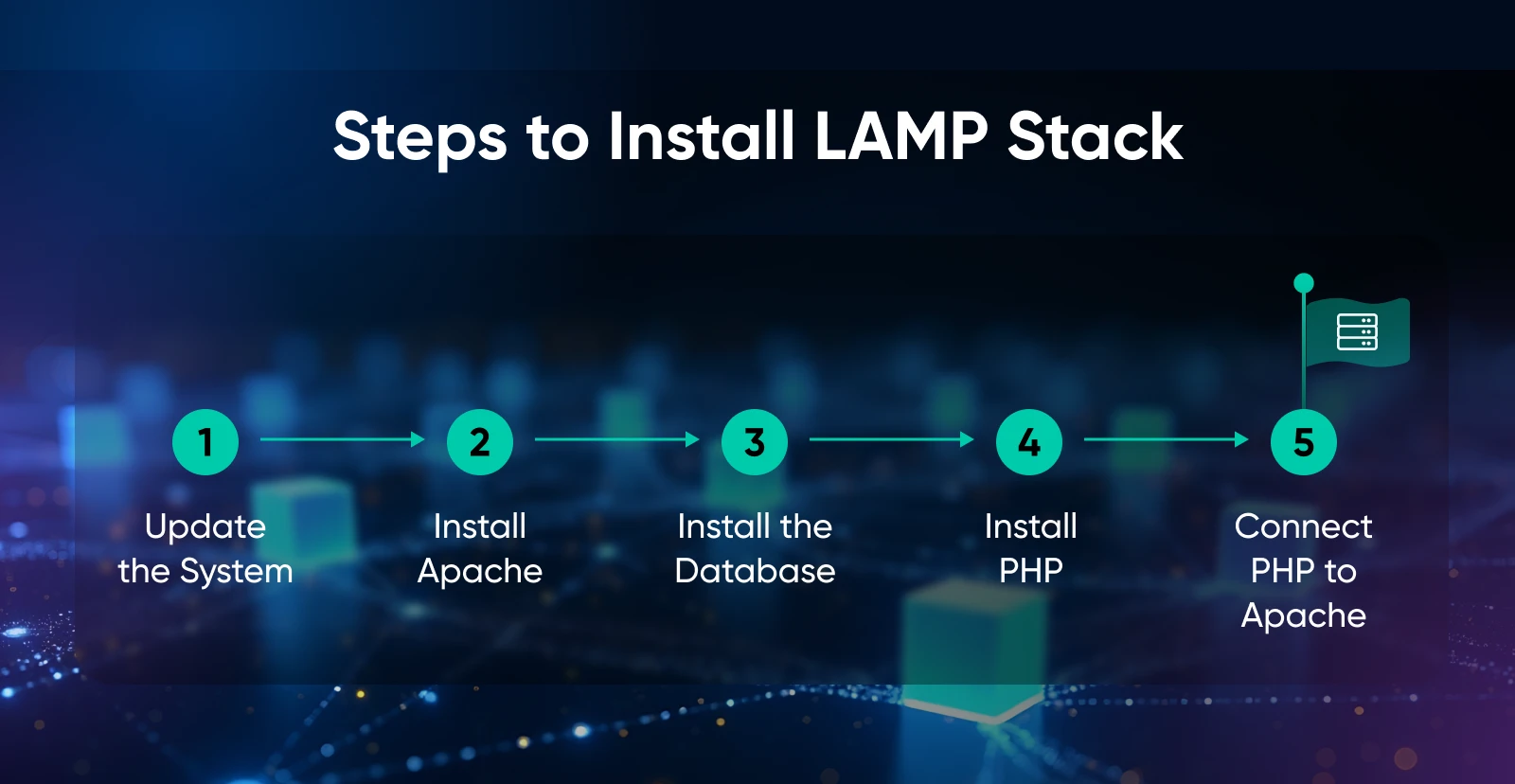
1. Update the system
Run sudo apt update && sudo apt upgrade -y.
This pulls the current package index and patches the base OS to the latest security release.
2. Install Apache
Run sudo apt install apache2.
The package puts a systemd service called apache2 on the box, sets it to autostart on boot, drops a docroot at /var/www/html/, and writes config to /etc/apache2/. Visit your VPS’s IP in a browser. If you see the Ubuntu Apache welcome page, you now have a working web server.
Run systemctl status apache2 to confirm. A green “active (running)” line is what you want.
3. Install MySQL or MariaDB
Run sudo apt install mysql-server (or mariadb-server).
Then, run sudo mysql_secure_installation to set a root password, drop anonymous users, remove the test database, and disallow remote root login. Skipping mysql_secure_installation is the most common newbie mistake — don’t skip it.
If mysql_secure_installation keeps looping on the root password, your root user is on auth_socket (the Ubuntu default). Switch it first with: ALTER USER ‘root’@’localhost’ IDENTIFIED WITH mysql_native_password BY ‘your_password’; then run the script, and switch back afterward if you prefer socket auth.
Still deciding between MySQL and MariaDB? For most PHP apps, the choice is irrelevant. Pick MariaDB if you want a permissive open-source license. Go with MySQL if your application’s docs assume it. One practical exception: if you’re migrating from a managed host that ran MySQL 8.0, stay on 8.0. The utf8mb4_0900_ai_ci collation was MySQL-only until MariaDB 11.4.5 (early 2025) added it as a compatibility alias, so charset edge cases can still bite you on older MariaDB builds.
4. Install PHP and required modules
Run sudo apt install php php-mysql php-curl php-mbstring php-xml php-zip.
Different apps need different modules. WordPress recommends php-imagick for image processing (php-gd works as a fallback). Laravel needs php-mbstring, php-xml, and php-bcmath. Check the app’s docs if unsure.
5. Wire PHP to Apache via PHP-FPM
Why PHP-FPM instead of mod_php? Mod_php embeds the PHP interpreter inside every Apache process. That’s fine for a single low-traffic site. But at scale, every Apache worker holds a copy of PHP in memory, whether it’s serving a PHP request or a static image. RAM gets wasted, and performance flattens.
PHP-FPM separates the two. Apache stays lean and proxies PHP requests to a FastCGI process pool you can tune independently. For a 4 GB VPS running WordPress, the result is lower memory pressure under traffic and better tail latency when traffic spikes.
This is where most older tutorials get it wrong. The modern recommended setup is PHP-FPM with the Apache event MPM, not the old mod_php.
Here’s the wiring on Ubuntu 24.04 (PHP 8.3):
# Install the FPM runtimesudo apt install php8.3-fpm
# Drop mod_php and the prefork MPM, switch to the event MPMsudo a2dismod php8.3sudo a2dismod mpm_preforksudo a2enmod mpm_event
# Hand PHP requests to FPM over a FastCGI proxysudo a2enmod proxy_fcgi setenvifsudo a2enconf php8.3-fpm
# Apply itsudo systemctl restart apache2
# Confirm the wiring tooksudo apache2ctl -M | grep mpm # should show mpm_event, not mpm_preforksudo systemctl status php8.3-fpm # should be active (running)
A phpinfo() page will now report Server API: FPM/FastCGI. If you’re on a different PHP version, swap the 8.3 in the commands to match.
For pool tuning (worker counts, memory limits, socket vs. TCP), The official PHP-FPM install docs go deeper. The Ubuntu Apache install docs and the DigitalOcean LAMP tutorial are handy component references for a second angle.
Note: The DigitalOcean tutorial references an Ubuntu 22.04 server; at the time of writing, the information is correct for Ubuntu 18.04 and above.
How Do You Secure a LAMP Stack After Install?
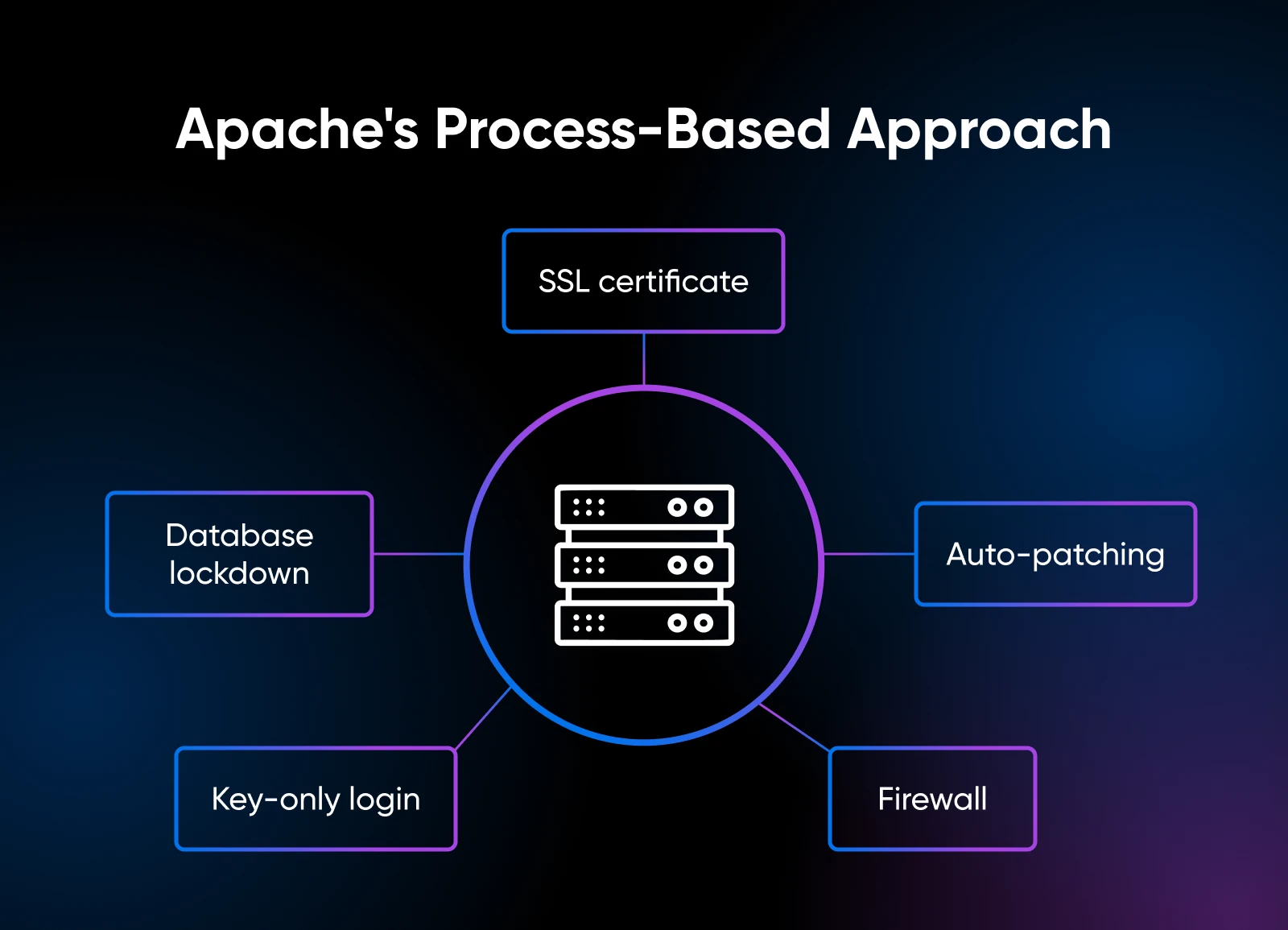
A fresh LAMP install isn’t production-ready. These five steps cover the floor:
That’s the floor. Anything more (fail2ban, ModSecurity, intrusion detection, and off-box backups) is good practice, but not required to ship. For OS-level hardening, Ubuntu’s server security documentation covers it well.
Rather not own all of this? DreamHost’s managed VPS plans handle patching, monitoring, and backups for you.
How Much Does Running LAMP on a VPS Cost vs. Managed Hosting?
A self-managed LAMP VPS runs roughly the cost of an entry-level managed plan, but removes every per-site fee, email surcharge, and renewal-creep ceiling. The trade-off is the ops work (patching, backups, monitoring) that managed plans handle for you.
The honest cost of ops, in human time: a clean LAMP VPS needs about 30 minutes a month of attention if you’ve automated patching. That’s less than the time most people spend picking what to watch on Netflix on a Sunday night.
The number nobody publishes is what managed hosting actually costs three years in. The renewal-creep pattern most operators hit looks like this.
- Year 1: $9/month introductory rate
- Year 2: $19/month — “rate adjustment”
- Year 3: $34/month, plus $3 for SSL, plus $5 for daily backups, plus $15 a year for WHOIS privacy.
At DreamHost, we price our VPS plans to stay flat — no per-site fees, unmetered bandwidth, and full root access at a predictable monthly rate.
When Does Running LAMP on a VPS Make Sense?
Running LAMP on a VPS makes sense when you’ve outgrown what shared or managed hosting will give you, and you’re comfortable owning what they used to handle.
Good fits:
- Leaving managed hosting: Price hikes, CPU throttling, or plugin restrictions you didn’t agree to.
- Running a PHP app: WordPress, Laravel, Magento, Drupal, or a custom codebase that needs predictable resources.
- Agency hosting multiple sites: Per-site fees on managed plans get absurd at scale.
- Wanting `ssh`, `wp-cli`, and `git`: The tools you actually use to run a site.
When LAMP on a VPS isn’t the right call:
- Real-time apps with heavy WebSocket traffic: Node.js handles persistent connections better than LAMP’s request-response loop.
- Microservices with autoscaling needs: Containers and Kubernetes fit better when you spin instances up and down on demand.
- Zero Linux comfort and no plans to build it: Stay managed.
A useful self-test: If you can ssh into a server and read a config file without panicking, you can run LAMP. If that sentence felt confusing, your managed host is doing real work for you — and that’s not a bad thing.
When Should You Stay on Managed Hosting Instead?
Stay on managed hosting if any of these sound familiar:
- You don’t have the technical staff who can troubleshoot a systemctl log if WordPress goes down on a Saturday evening.
- You don’t want to write a backup script or audit one a friend wrote.
- Uptime is mission-critical, and you don’t have someone on rotation who can respond to a page.
- You’d save more in time than you’d spend. A consultant billing $150 an hour and spending two hours a month on server maintenance is paying $300 for the privilege of self-managing. A $30-a-month managed plan looks great at that math.
Somewhere around $50 to $80 a month in managed fees, paired with minimum sysadmin comfort, the math starts favoring self-managed. Below that, managed is fine.
Wrapping Up
LAMP on a VPS makes sense when you want control and predictable cost more than you want zero ops work. The install is about half an hour. The hardening is another half hour.
The hard part is deciding whether the trade-off is worth it.
Remember the renewal email at the top of this guide. A host quietly decided the customer wouldn’t notice when a $9 plan turned into $34. A self-managed LAMP VPS doesn’t make pricing changes impossible, but it takes the stack itself off the table. The PHP version, the firewall, the SSL cert, and the backup script. Those are configurations you own, on a box you control.
Self-hosting your LAMP stack is just a thing you can do now. It used to require a closet full of hardware and a static IP from your ISP. Now, the hardware is rented for the price of a couple of coffees, and the static IP comes with the box.

VPS
Own Your Entire Stack. Apps, AI, Databases, and More.
Keep every credential and conversation on a server you control, with NVMe speed and unmetered bandwidth built in.
Explore VPS Hosting Plans
Frequently Asked Questions About LAMP on a VPS
Is the LAMP stack still relevant in 2026?
Yes, the LAMP stack is still relevant in 2026. PHP runs 70.8% of all websites with a known server-side language, and WordPress alone, a LAMP application, accounts for 41.5% of all websites. LEMP and modern JavaScript stacks have eaten share for high-concurrency real-time workloads, but for typical PHP apps and content sites, LAMP is still the default.
How much RAM do I need for a LAMP VPS?
A 4 GB VPS handles a typical LAMP application: a single WordPress site, a small Laravel app, or a few low-traffic PHP sites. DreamHost’s VPS Stack 4 is sized for that baseline. Step up to 8 GB for multi-site agency hosting or a high-traffic WooCommerce store. Plan for 16 GB on a heavy-database custom PHP app.
Can I run WordPress on a self-managed LAMP VPS?
Yes, WordPress runs natively on LAMP because LAMP is what it was built on. The install is a virtual host, a MySQL database, the WordPress files in /var/www/, and WP-CLI for command-line management. Managed WordPress hosts run this same stack under their control panel. The difference is that you can see and tune every layer on a self-managed VPS.
Do I need root access to install LAMP on a VPS?
Yes, you need root or sudo access to install LAMP on a VPS. Most managed and shared hosts don’t give you root, which is why the question matters. If your current plan blocks sudo apt install, you’re on a managed plan, and a LAMP install on that plan isn’t possible without moving.
Should I install LAMP manually or use a one-click image?
Install manually if you want to understand what’s running on your box. One-click images and meta-packages like tasksel are fine for prototyping, but they hide the choices: which PHP modules are installed, whether PHP-FPM or mod_php is wired up, and what the firewall looks like. The 30 to 60 minutes manual installation costs pay back the first time something breaks at 11pm.
What’s the difference between LAMP and LEMP?
LEMP swaps Apache for Nginx (the “E” is pronounced engine-x). Same Linux, same database, same PHP — different web server. Nginx handles high-concurrency static traffic better. Apache wins on .htaccess flexibility and out-of-the-box WordPress compatibility.
According to W3Techs, Nginx leads web server market share at 31.8%, with Cloudflare Server at 28.5% and Apache at 23.2% (as of June 2026). Nginx is the new default for API-heavy or static-heavy deployments. Apache is still the better choice if your application expects .htaccess rules, which most off-the-shelf PHP apps, including WordPress, do.
Did you enjoy this article?
