
Email Marketing Automation: How To Build Campaigns That Run Themselves

Good ol’ email.
It doesn’t get the same hype as other, newer channels. But for keeping your prospects engaged and converting them into customers, there’s nothing more effective.
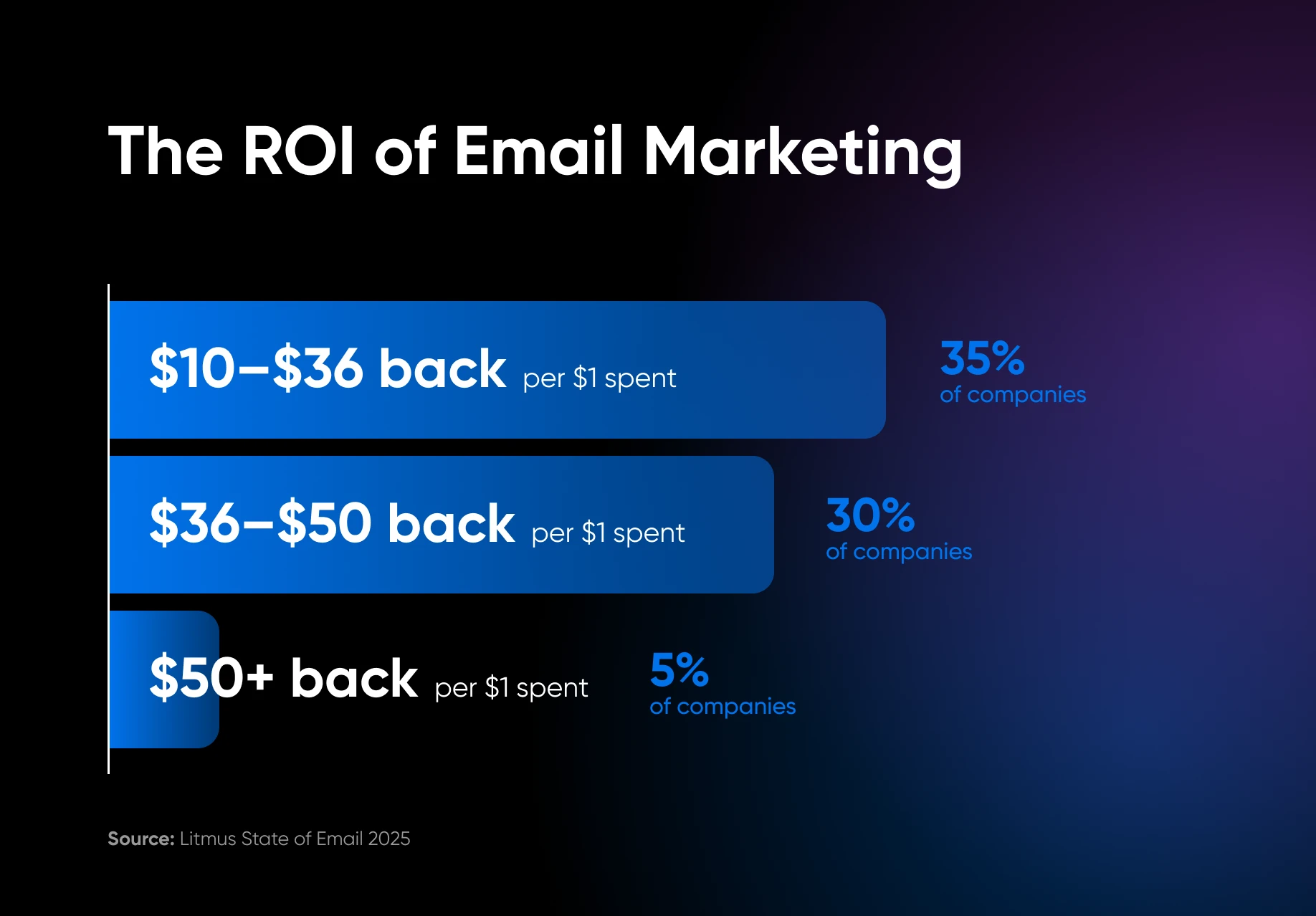
Email is also a great channel to automate. Litmus reports that 35% of companies see returns of $10–$36 for every $1 spent, and most email platforms come with some built-in automation. Even if you’re not using those features, you can still speed things up drastically with AI.
That said, automating email isn’t child’s play. To avoid major whoopsies, you need to use workflows and AI tools carefully.
In this guide, we’re going to show you how to get started — from drafting newsletters to setting up trigger-based campaigns.
Ready? Let’s get to it!
Newsletter Automation
So, you have an email list. Subscribers who are interested in hearing about your latest news and offers.
To keep them engaged, you need to send out updates — it’s a chore… but one we can mostly automate.
Automated AI Drafting
The simplest approach is to use AI for first drafts.
Let’s imagine you want to send out one customer spotlight every month, an example of your work, complete with a photo and a description of the job.
Let’s build automation with Google Forms, Google Sheets, Zapier, and Mailchimp.
- Set Build Mode to Write.
- Choose GPT-5.4 Mini as your model.
- Add your notes and images as input fields.
- Add a simple prompt like: “Write a 100-word draft of a customer success feature for a gardening business email newsletter and a subject line based on these notes: [Project notes]
- Hit Improve prompt to add some extra oomph.
- Add “Body Copy” and “Subject Line” as Output fields.
Once this is set up, just feed your notes into the form, check the draft, and hit send.
Done!
You can use the same idea for a variety of email types: new promotions, seasonal updates, company news, and so on. Just adjust your template and prompt to match.
News Roundup
A good way to keep your subscribers interested is by turning your newsletter into a publication – Kinda like a trade mag, but under your brand.
We’re going to use an app called Hoppy Copy:
- “[Web Search] Create a list of key funding stories in [your industry] this month. Specify which company received the funding, and how much they raised. Write each story in this format:H3 Header [Company Raises $Amount for Purpose][Date] / [Funding Series – in italics][1–2 sentence description of the company and the raise]”
Trigger Emails
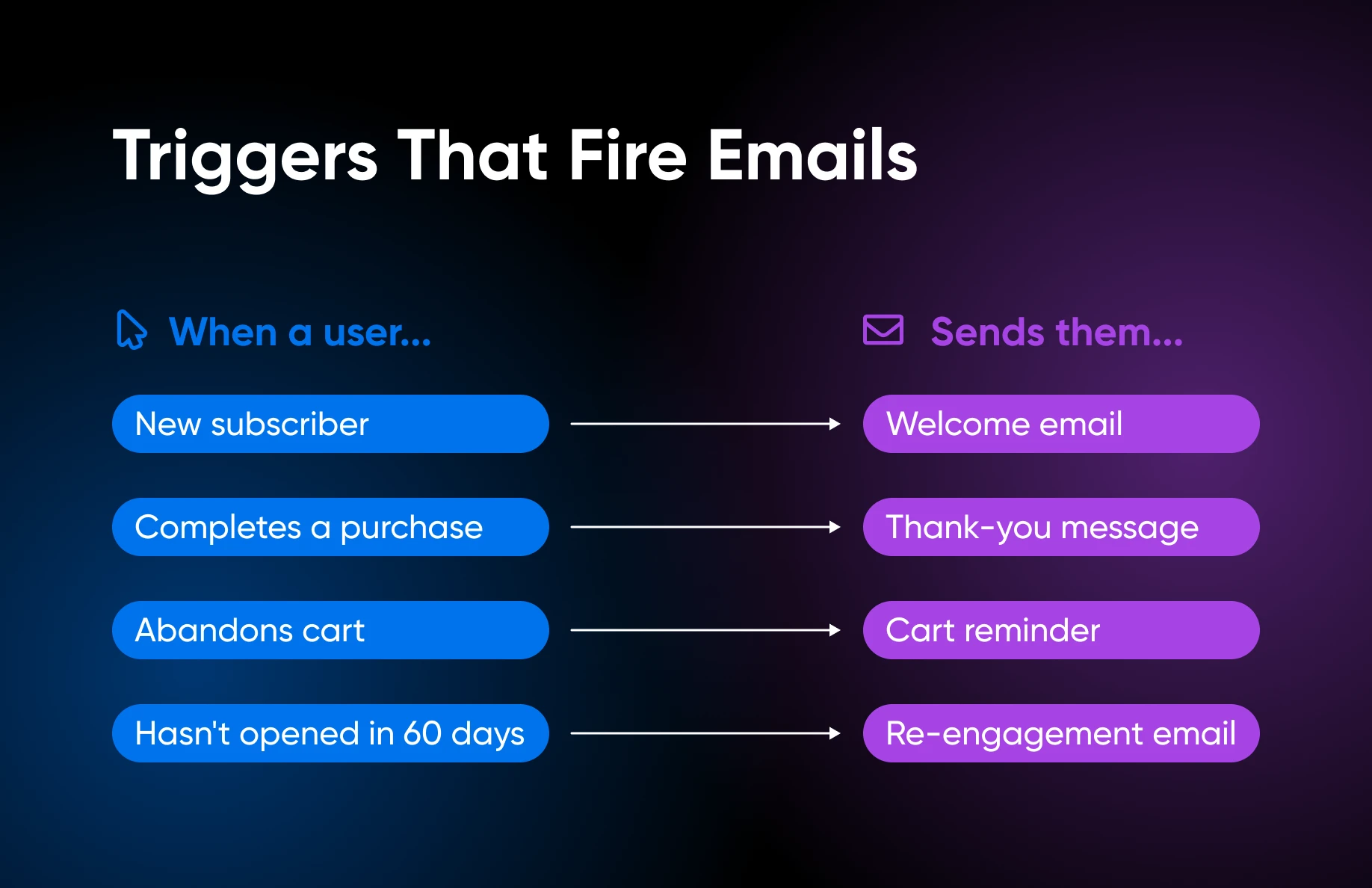
Some of the most effective email marketing is reactive: you send a message after your prospects or customers do something.
Classic examples include:
- Welcome emails for new subscribers.
- Onboarding messages for new users.
- Notifications that an item is back in stock.
- Sending an abandoned cart email when a customer doesn’t complete checkout.
We can automate all of these. It’s pretty easy, too. For example, MailerLite lets you trigger sending an email when your subscribers:
- Join an audience segment.
- Complete a form.
- Click a link.
- Update their info.
- Reach for an anniversary.
- Buy something on your e-commerce site.
Of course, you’re going to need a message for each of these events. Sometimes, more than one.
This is where AI can help. Here’s how to set up the automation:
- “Write a complete set of trigger emails for a [your business type]: a welcome email, an abandoned cart reminder (one hour after abandonment, no discount), a post-purchase thank-you, and a re-engagement email for subscribers who haven’t opened in 60 days. Keep each under 150 words and conversational.”
If you’re feeling a touch more fancy, you could try automating entire sequences from triggers.
For e-commerce email, Klaviyo uses AI to determine which email template works best for each customer and can even suggest products for follow-up purchases.
The platform also uses predictive AI to determine exactly when it’s best to send a message after a trigger.
Custom Trigger Workflows
Bear in mind, you don’t have to stick with the triggers offered by your email marketing platform.
With tools like Zapier, you can hook up pretty much any app and use it as a trigger:
- Send a response to people who fill out your Typeform survey.
- Automatically send out a thank-you note to people who buy via Stripe.
- Fire off an outbound message to anyone added to your Pipedrive CRM.
Just avoid using the built-in Email by Zapier tool; this is really aimed at internal communications. Instead, just connect the trigger app to your current email platform.
Lead Magnets and Campaigns
The best way to grow your list? Give something away. Some people say we’ve passed peak lead magnet territory, but this tactic still works — and we can use AI to speed things up.
Gamma is a useful tool here. Here’s how to build an awesome downloadable PDF:
- “Create a [format: checklist/guide /cheat sheet/template] for [your target customer] called ‘[Title]’. The main topic is [subject]. Include [number] tips or sections. The tone should be [friendly/professional/straightforward]. My business is [brief description of what you do]. The reader’s main problem is [pain point], and this lead magnet should help them [desired outcome].”
Automating the Follow-up Campaign
When someone downloads your freebie, you have a small window of opportunity. They’ll never be more interested in what you do than in the here and now.
To take advantage, you need to be in their inbox. Obviously, you’re not going to send follow-up emails by hand — that’s a job for automation.
Platforms like Mailchimp and MailerLite have their own sequence builders. They also have AI writing tools, meaning you can create a sequence quite quickly.
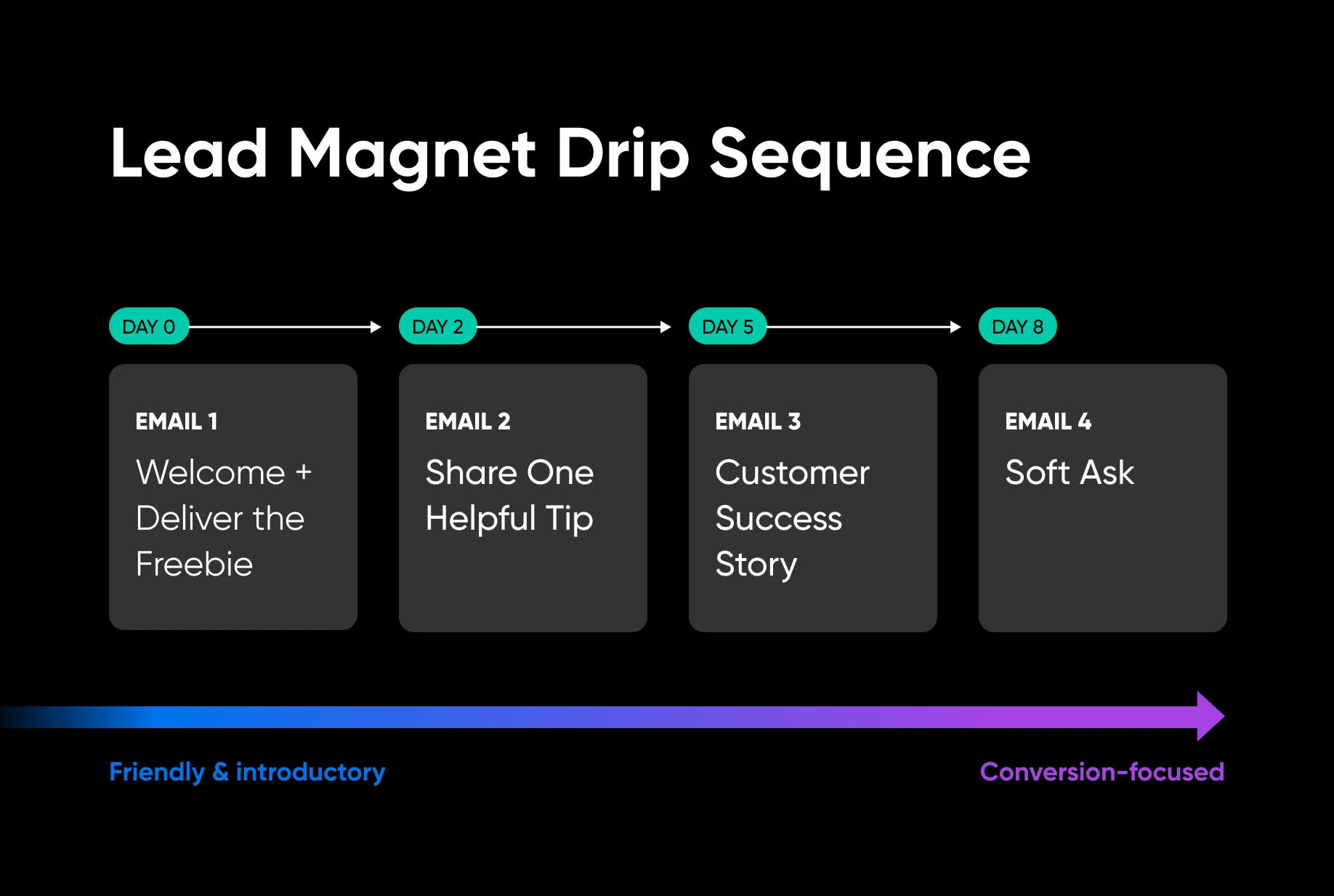
Here are some prompts to create a four-email sequence:
- Email 1: “Write a short welcome email for a [business type] that delivers a free [lead magnet title] to a new subscriber. Introduce the business in one sentence, tell them what they’ve just received, and set expectations for what’s coming next. Keep it under 150 words and conversational.”
- Email 2: “Write a short email for a [business type] that shares one practical tip related to [lead magnet topic]. Don’t sell anything — just be helpful. End with a single line that teases the next email. Under 150 words, friendly tone.”
- Email 3:“Write a short email for a [business type] that tells a brief customer success story related to [the problem your business solves]. Keep it specific and relatable. End with a soft question that invites the reader to [book a consultation / get a quote / visit the website] with a single clear call to action. Under 150 words.”
Turning Campaigns Into AI-Powered Experiments
Many email platforms let you run A/B tests on your subject lines. That’s where some of your subscribers see one subject line and others see a different one. You can see which gets the most engagement, and adjust your sequence accordingly.
Mailchimp can actually automate this. If you enable winning metric in the settings, the platform will test your headlines with a small segment of your audience. The most popular subject line is then automatically sent to the rest of your list. Pretty neat, huh?
Reach More Customers With Email Automation
It would be great to hand over all your email marketing to an AI assistant and forget about it. But automation doesn’t work that way — at least not yet.
If you want to automate your email marketing effectively, it’s important to:
- Use dedicated tools where possible
- Keep a human in the loop
- Focus on what your customers and subscribers want
- Test new automations before relying on them
If you want to learn more about marketing automation, we have written loads of great guides on the topic:
Remember, email only works as a marketing channel if you have a list. And that means you need a credible website.
DreamHost offers affordable, reliable hosting and powerful AI tools to help you build that presence online. Sign up today to get started!

[Download] 2026 Marketing on Autopilot
Stop Doing Marketing By Hand.
91% of marketers say automation helps them hit their goals. This 49-page ebook gives small business owners playbooks for email, SMS, social, paid ads, and analytics — running themselves while you focus on the work that actually moves the needle.
Get The Playbook
Did you enjoy this article?

